You connect your LinkedIn from the Outreach page in SeedForge: click Connect LinkedIn and complete the one-time secure connection workflow. Your messages and replies send from your own LinkedIn account, so investors see you, and you can disconnect at any time. Your first month of outreach is free: when you connect your LinkedIn, the trial month runs with no charges and no wallet deposit.
Connect your account
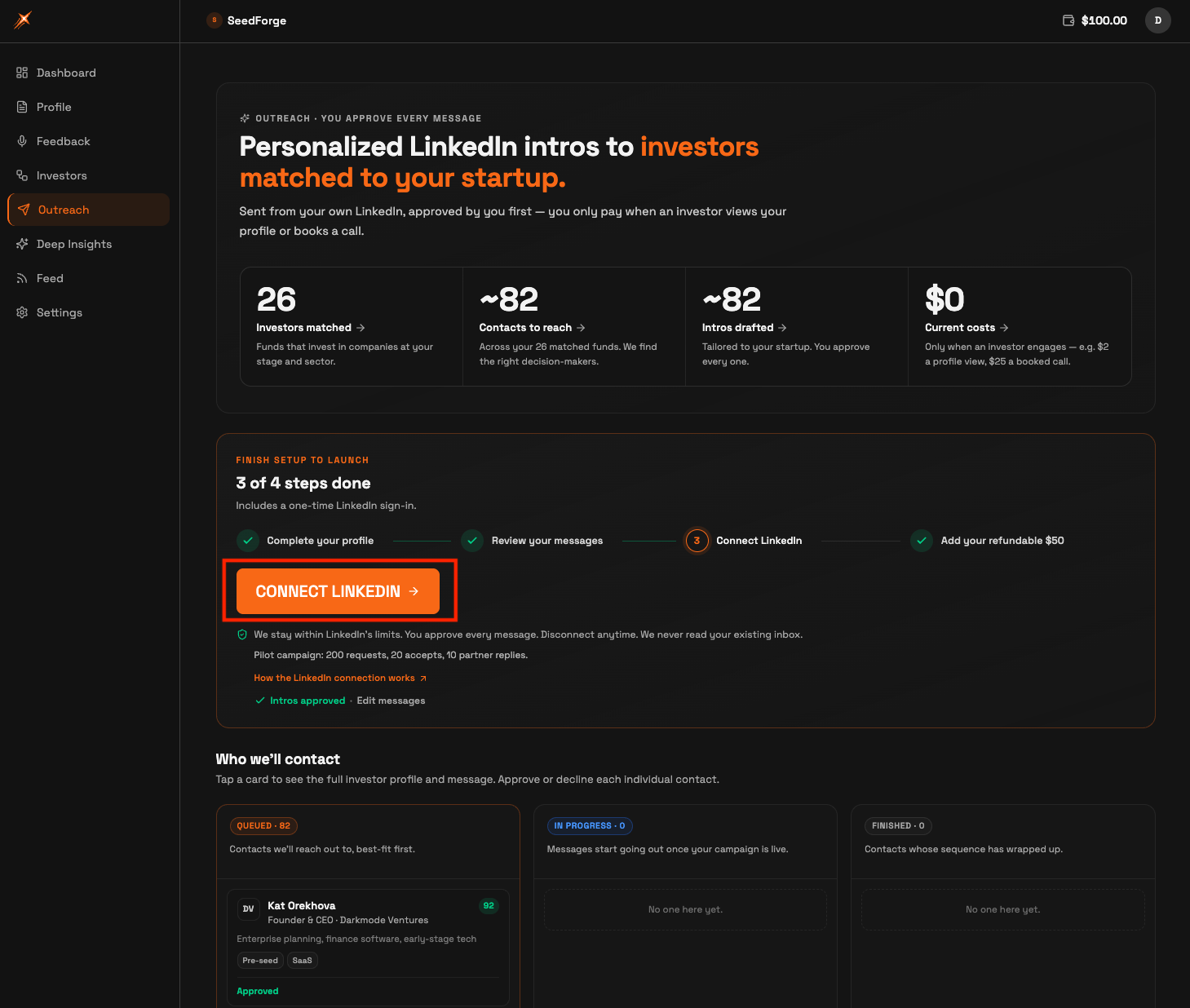
Open Outreach. In the left side menu, click Outreach. The setup page lists four steps: complete your profile, review your messages, connect LinkedIn, and add your fully refundable $50.
Start the connection. Below the four step process, click Connect LinkedIn. A separate workflow opens.
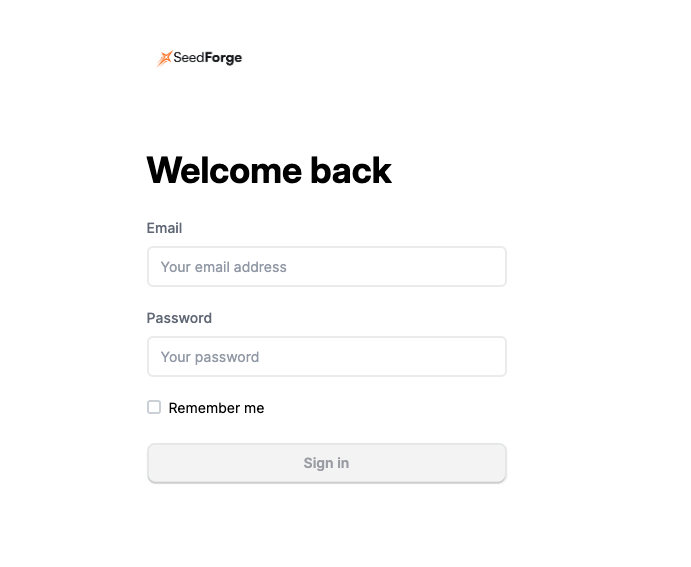
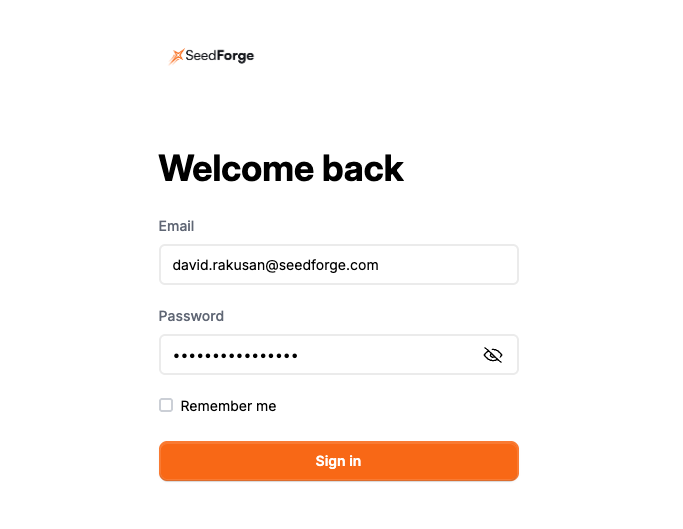
Create your SeedForge connection login. This is separate from your LinkedIn login, which you enter next. Enter your email and choose a password to set up the secure connection.
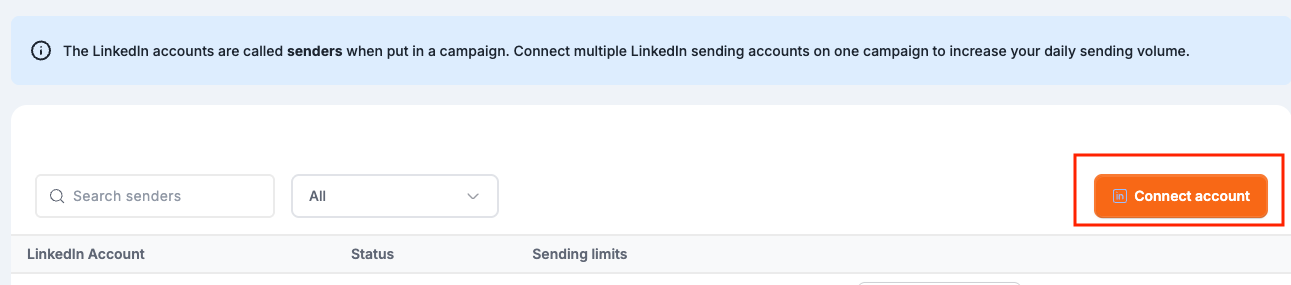
Add your account. Click Connect account.
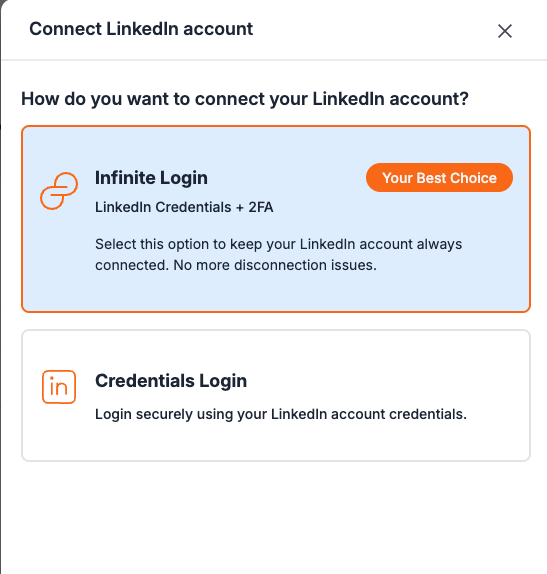
Select Infinite Login. Choose Infinite Login for the most stable connection. It signs back in for you automatically, so your account stays connected.
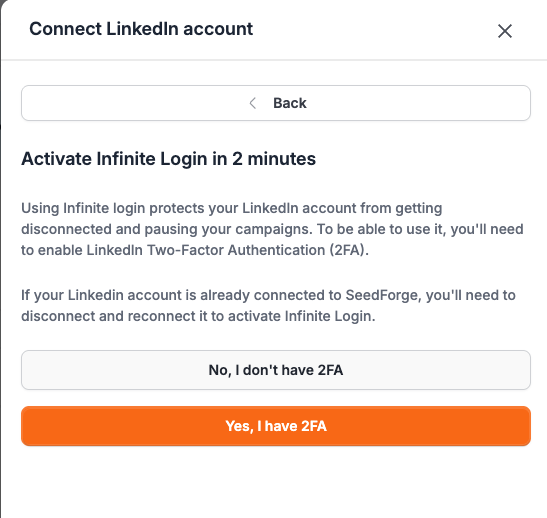
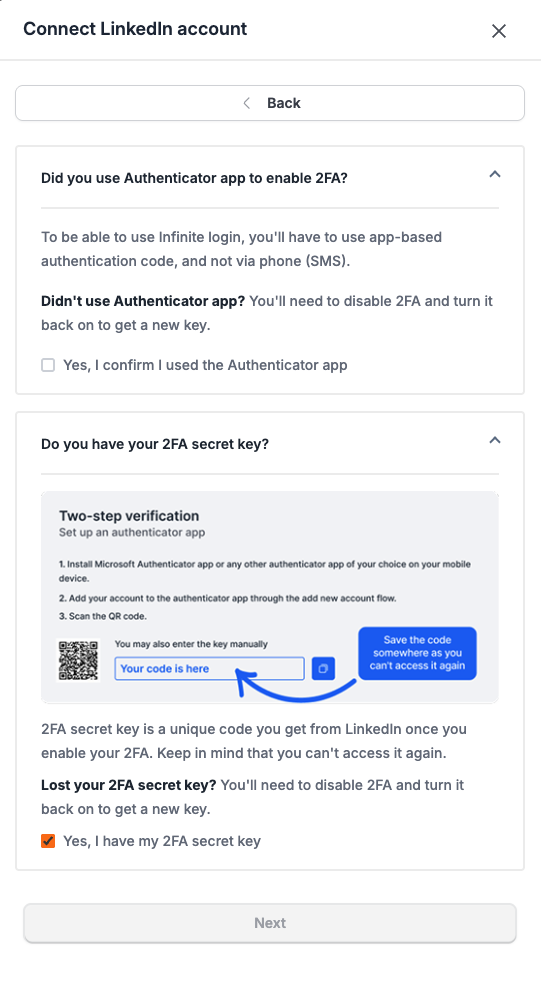
Enter your LinkedIn login. Enter the email and password for the LinkedIn account you want SeedForge to send from. If your account has two-factor authentication on, see "Where to find your 2FA secret key" below.
Note: Your credentials are encrypted and stored securely, no one at SeedForge can see them, and you can disconnect and revoke access anytime. In the background, SeedForge runs your account on its own dedicated connection in the country you select, and paces every action to look like a real person, which is why the country field appears here.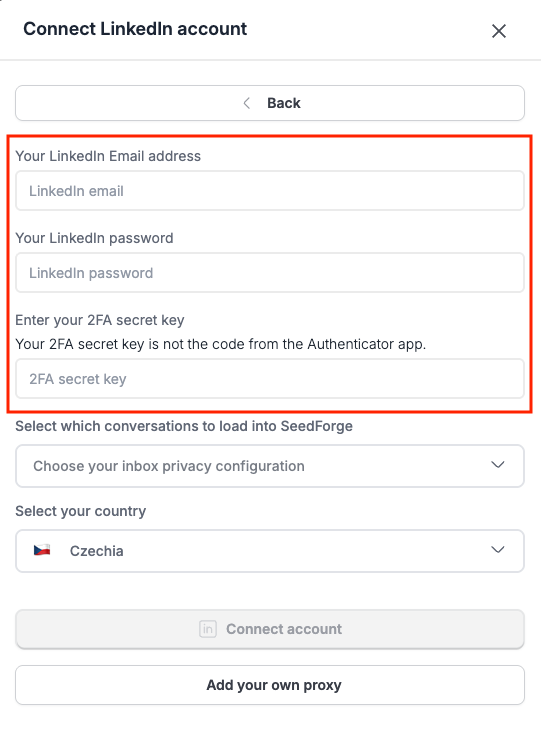
Set conversation tracking. Choose to track only the conversations started from SeedForge, keeping the rest of your inbox private.
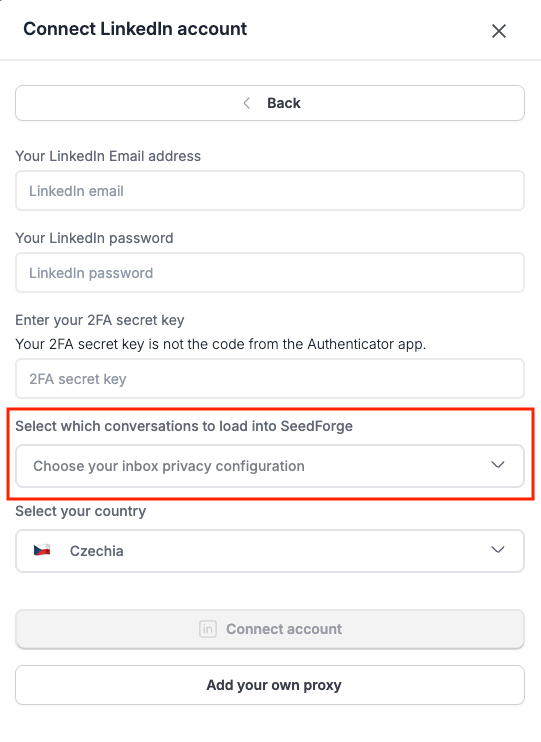
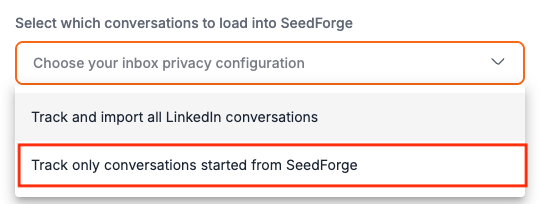
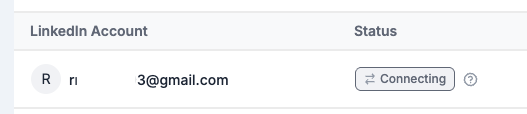
Finish connecting. Click Connect LinkedIn. The screen shows the connection in progress, which can take up to 20 minutes.
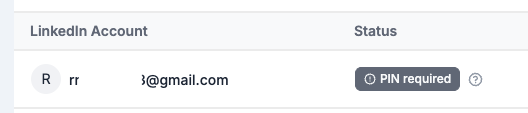
Enter a security code if asked. LinkedIn sometimes requests a two-factor PIN. Enter it when prompted.
Tip: LinkedIn Premium is recommended. It improves acceptance rates and adds a personalized note to each connection request.
Note: Use only SeedForge to automate this LinkedIn account. Running a second automation tool at the same time risks LinkedIn restrictions.
If the connection fails on a security code
If LinkedIn asks for a one-time code during setup and the connection still times out, the most stable fix is to connect with your 2FA secret key instead of a one-time code. Add the key in step 6 using the steps in "Where to find your 2FA secret key" below. If the connection still does not complete after that, email support@seedforge.com and the team will help.
Quick answers
Do I have to give SeedForge my LinkedIn password?
Yes. You enter your LinkedIn email and password so SeedForge can send from your account. They are encrypted, no one at SeedForge can see them, and you can disconnect and revoke access anytime.
How long does connecting my LinkedIn take?
Establishing the connection can take up to 20 minutes. Enter a two-factor code if LinkedIn asks for one during setup.
Can I disconnect my LinkedIn from SeedForge later?
Yes. You can disconnect your LinkedIn from SeedForge at any time, which breaks the connection.
Where to find your 2FA secret key
Your 2FA secret key is the setup key from your authenticator app, not the 6-digit code the app shows. The code changes every 30 seconds; the secret key stays the same, which is what lets SeedForge sign back in for you and keep your account connected.
To get it, open LinkedIn and go to Settings & Privacy, then Sign in & security, then Two-step verification. Set up verification using an authenticator app. LinkedIn shows a QR code with a setup key (also called a secret key) next to it. Copy that key and paste it into the 2FA secret key field in SeedForge. If two-step verification is already on, turn it off and set it up again with an authenticator app to reveal the key.
If you do not use two-factor authentication, leave this field empty.