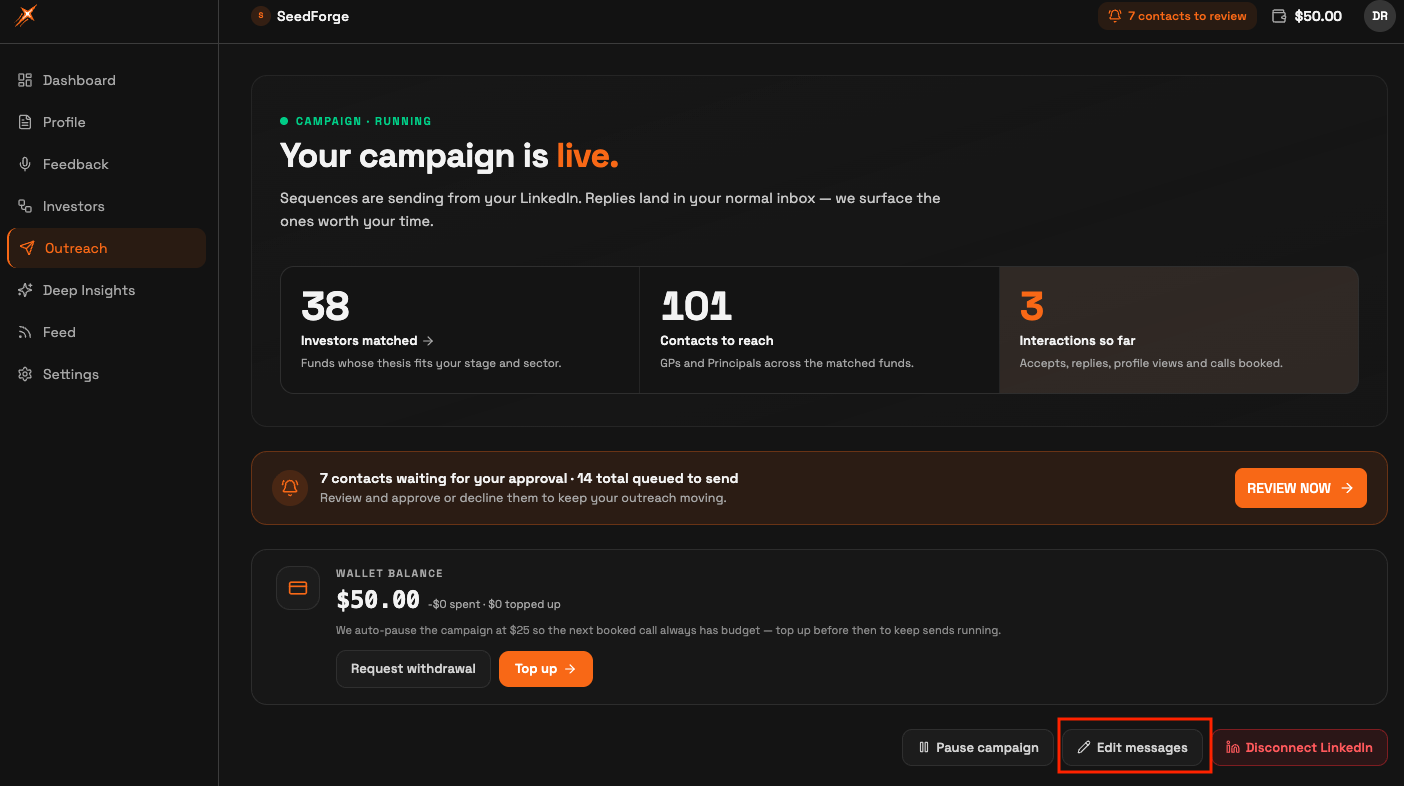
You change them in Edit messages on the Outreach page. The editor holds the messages a campaign sends on your LinkedIn account: the Connection request note, the Follow-up after an investor accepts, and the Second follow-up if there is no reply. Edit any of them, then click Save changes.
Open Outreach. Go to the Outreach page and click Edit messages to open the Edit your messages editor.
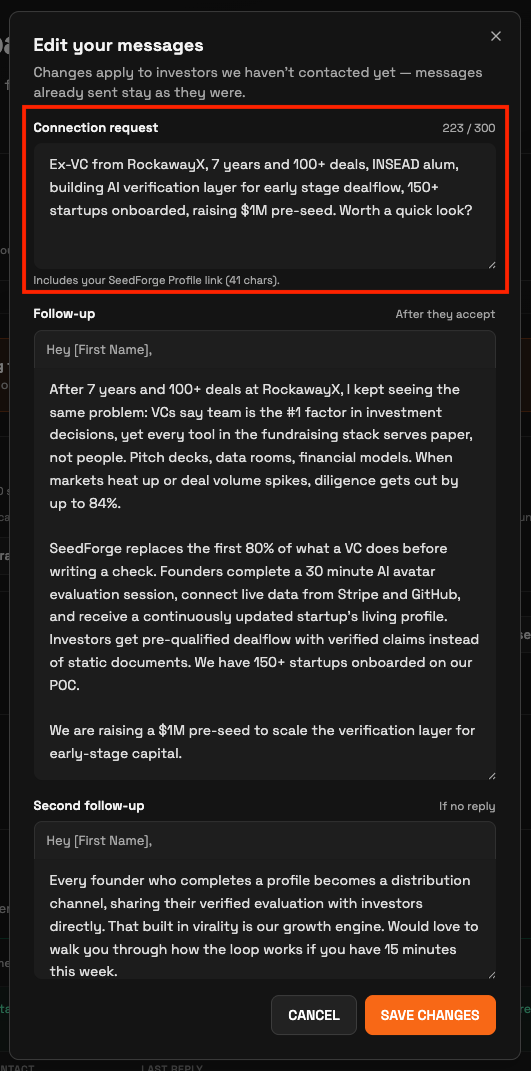
Edit the connection request. The Connection request holds the short note sent when you invite an investor to connect. It allows up to 300 characters, shown by a live counter, and your SeedForge Profile link is added automatically, using 41 of those characters.
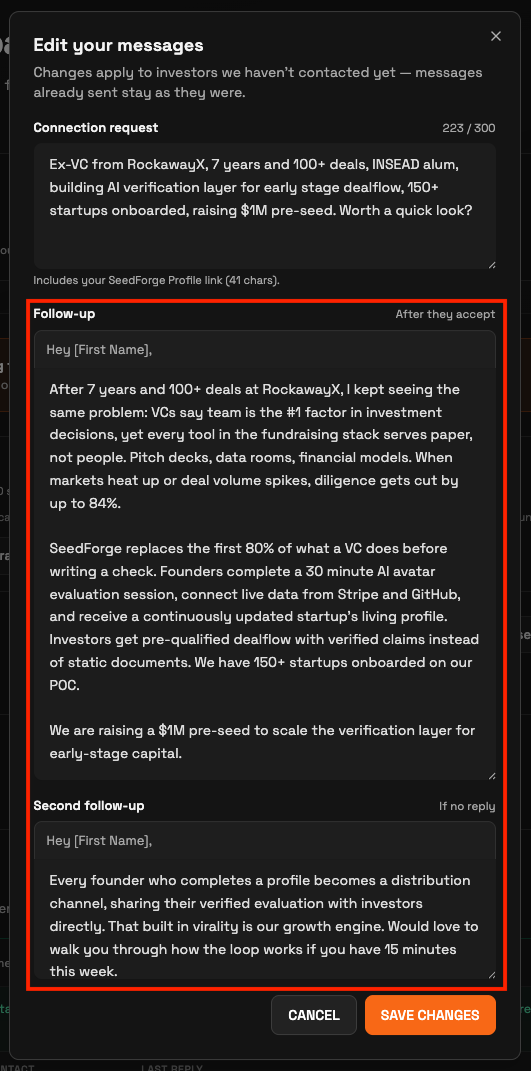
Edit the two follow-ups. Write the Follow-up, sent after an investor accepts, and the Second follow-up, sent if there is no reply. Put the [First Name] placeholder where you want the investor's first name and SeedForge fills it in for each investor.
Save changes. Click Save changes to keep your edits, or Cancel to discard them. Saving closes the editor and returns you to the Outreach page.
Note: You can write and save the Connection request note on any LinkedIn account. Free accounts can send a note on only a limited number of connection requests, so some go out without it. LinkedIn Premium is recommended so every connection request carries your note.
Tip: Keep the Connection request short and specific to the investor. It is the first thing they see, so give one concrete reason to look.
Quick answers
Can I edit the messages after my campaign starts?
Yes. Edits take effect for investors you have not contacted yet, and messages already sent stay as they were.
How long can the connection request be?
Up to 300 characters, shown by a live counter. Your SeedForge Profile link is added automatically and uses 41 of those characters.
How do I personalize each message?
Put the [First Name] placeholder where you want the investor's first name. Each investor also gets their own SeedForge Profile link automatically.